How to Manage Tasks, Notes, and Calendar Without Notion Using Just Two Tools
Choose two tools: a work hub for tasks and knowledge, plus your calendar
Streamline your workflow by selecting one app as your central work hub, this will manage tasks, documents, and light client management, paired with the calendar you already use. With just these two tools, you can cover almost all your productivity needs.
What your work hub needs to handle
Store tasks, documents, and simple activity workflows together.
Link tasks with documents and people seamlessly.
Offer useful, practical layouts, like lists, boards, or timelines, that make sense for your day-to-day work.
Support capturing meeting notes and enable easy follow-ups.
Integrate or sync with your calendar and email, even if it’s just one-way.
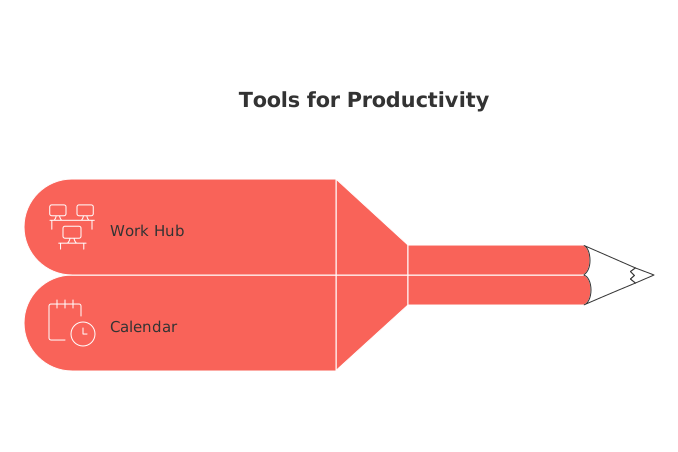
Available tools that fit this work hub pattern include Routine and ClickUp, both suitable for individuals and teams. In addition to these, you also need to use your calendar (such as Google Calendar or Outlook). The work hub manages your projects and notes, while your calendar helps you block out time. You don’t need to manage projects in your calendar, just protect the time you need to get things done.
Fewer apps mean less decision fatigue and smoother focus.
Set up the work hub to manage projects, tasks, and a lightweight knowledge base
Begin with a straightforward structure before importing anything. Use clear and simple naming, your future self will thank you.
Create a structure that guides your day
Projects: Create one for each specific outcome (such as launching a site, onboarding a client, or renovating a kitchen).
Statuses: Use standard steps like Backlog, Next, In progress, Blocked, and Done.
Custom fields: Add useful information like due dates, time estimates, priority, and owner.
Docs: Write a project brief for overview and maintain a running log for decisions and key notes.
References: Link tasks to important documents. Pin the project brief where it's always visible.
For client- or sales-related work, an additional feature you can use is a visual workflow chart, often referred to as a pipeline board. On this board, each element or card represents a unique client interaction or sales endeavor. Link related tasks and notes to these cards. This lighter CRM approach keeps both project delivery and relationship tracking in a single, integrated view.
Freelancer: Use one workspace for all clients; create projects per client, and set up docs for briefs and invoices.
Creator: Set up projects for each video or series, and use documents for your scripts and production checklists.
Household CEO: Organize projects for events like a move, vacation, or renovation; store all quotes, checklists, and important lists as documents.
Schedule your week without living in a calendar tab
Let your work hub determine what’s most important and use your calendar to reserve dedicated time for these priorities. By using both tools for their intended strengths, you keep your system tidy and effective.
Adopt a practical routine that lasts
Each Friday, choose three outcomes you want to achieve the next week and add estimates for each.
Daily, pick your top three tasks and time-block them on your calendar.
Leave 40% of your day open and unscheduled, allowing space for surprises and interruptions.
Group administrative tasks into one time block to avoid constant context switching.
If your chosen task-management tool supports a layout where you can visually schedule tasks (referred to as agenda views), simply drag your tasks into the available scheduling windows, these are your “open slots.” If your tool doesn’t have this feature, just create calendar events named after your tasks so each important task has protected time. Try to keep time blocks short and focused; overly long blocks often lead to procrastination.
Automations that keep your work hub and calendar in sync
Automate repetitive or tedious steps to save time and avoid manual errors. Begin with simple, low-risk automation and expand as needed.
When you add a due date to a task, automatically create a corresponding block in your calendar.
When a calendar event ends, set up a follow-up task (such as “Next step”) if you haven’t already.
Moving a task to In progress? Set a soft deadline to keep things moving.
If a sales item enters a negotiation phase, schedule a follow-up reminder three days later.
Get a morning summary of your time blocks and top tasks sent to yourself each day.
Use either built-in features of the apps (so-called native integrations) or utilize application connectors like Zapier or Make, which help different software communicate with each other. Always keep logs to clearly record what actions were automated and why, this builds trust in your systems.
Real-world two-tool stacks for individuals and small teams
Here are sample setups that keep your toolkit minimal, while taking care of daily needs:
Freelance designer: Routine for all tasks, creative briefs, and client tracking; Google Calendar for scheduling work blocks and meetings.
Content creator: ClickUp to manage scripts and content assets; Outlook Calendar for shoot schedules and editing sessions.
Startup founder: Routine for the product roadmap and investor communication; Google Calendar for planning demos and office hours.
Family organizer: Routine to track projects like moving or school prep; a shared calendar to coordinate pickups and appointments.
Executives and managers can use the same strategy: keep your work hub as the single source of truth, while your calendar shows only actual time commitments. This keeps ambiguity, and digital clutter, to a minimum.
When to add a third tool (and when not to)
For most people, these two tools should provide a comprehensive system. Consider adding a third tool only if there are specific needs or functionalities the present system isn’t addressing.
If you regularly sketch systems or brainstorm ideas, add a whiteboarding tool.
If you need to provide dashboards or reports for other stakeholders, add a reporting layer.
If your need is occasional or just a nice-to-have, hold off, avoid unnecessary complexity.
Review your setup every few months. Remove tools that no one actually uses, software bloat tends to sneak up on you.
A short setup checklist you can finish in 90 minutes
Define three key outcomes for the next two weeks.
Create one project for each outcome in your work hub.
Add your top 15 tasks with clear action verbs and estimated time.
Write a one-page project brief and link it to related tasks.
Label any blockers and assign an owner, even if it’s just you.
Set calendar blocks for your top three tasks for tomorrow.
Turn on at least two automations: new due date → calendar block, calendar event end → follow-up task.
Review progress on Friday: archive completed tasks and projects, and update any that slipped.
Resources to compare tools and visualize your workflow before you commit
Need to weigh your options before you jump in? These resources offer clear, in-depth comparisons and tutorials:
See a breakdown of all-in-one workspaces versus focused project tools to better understand your available trade-offs.
Check out practical Gantt views and trackers to see how you can make schedules and dependencies visually clear.
For a deeper dive on workflow, read “Mastering the Project Lifecycle: The 5 Phases and What Really Happens in Each.”
Pick your central hub, keep your calendar focused on real commitments, and take action. The two-tool approach keeps your life more manageable, visible, and under control.
FAQ
Can I manage all aspects of my business using only two tools?
While using a work hub like Routine together with a calendar can streamline many tasks, it's critical to evaluate if they address all your unique requirements. Consider integrating additional tools only when there's a genuine need—unnecessary complexity can diminish focus.
Why shouldn't I schedule every minute of my day?
Over-scheduling leaves no room for adaptability, leading to increased stress and missed opportunities. Instead, aim to block essential tasks while allowing flexibility for unexpected events; it's both strategic and practical.
What are the risks of using too many productivity apps?
Juggling multiple apps can lead to decision fatigue and fragmented attention. Consolidating tools like Routine and a calendar streamlines workflows, reducing cognitive overload and maximizing efficiency.
How does Routine enhance task management compared to traditional methods?
Routine excels by linking tasks with relevant documents and people, creating an integrated workflow that traditional methods often lack. This synergy minimizes context switching, which is typically a hidden time sink.
What is the main benefit of automating tasks within my work hub?
Automating repetitive tasks mitigates human error and reallocates time toward more strategic activities. However, it's crucial to maintain oversight on automations to ensure they evolve with your objectives.
Why is capturing meeting notes vital in project management?
Meeting notes serve as a historical log and a reference point, facilitating informed decision-making and accountability. Ignoring this can lead to miscommunication and overlooked responsibilities, derailing progress.
Is it necessary to review my tool setup frequently?
Regular reviews prevent software bloat, ensuring that all tools in use genuinely contribute to productivity. Without periodic reevaluation, you risk accumulating unused apps that clutter and complicate your workflow.
How do custom fields in a work hub enhance project management?
Custom fields allow you to tailor project tracking to meet specific needs, such as priority or timelines, absent in generic setups. Ignoring this customization can lead to a one-size-fits-none approach, stifling project potential.

Julien Quintard
Founder & CEO at Routine05/06/2026
