Best Calendar Blocking Apps for Freelancers Juggling Multiple Clients
What calendar blocking means for freelancers with multiple clients
Calendar blocking sets fixed windows for deep work, client calls, prospecting, and admin. Each block gets a purpose and a boundary. You decide when work happens to enhance personal efficiency and productivity.
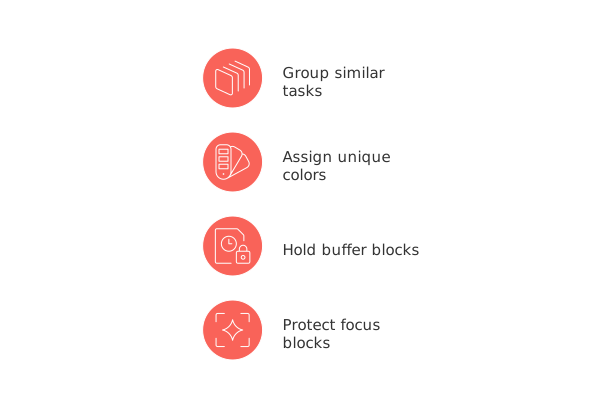
Group similar tasks to cut context switching.
Assign a unique color for each client or project to see balance at a glance.
Hold buffer blocks for overrun and urgent requests.
Protect one daily focus block. Treat it like a meeting with yourself.
Blocks are agreements with your future self. Keep them visible and specific.
How to choose a calendar blocking app for client work
Pick software that respects your time and your pipeline. Look for these traits before migrating your week.
Multi‑calendar support: Merge personal and client calendars without causing conflicts, known as double booking, where you schedule two different appointments at the same time.
Task and project linking: Turn tasks into blocks. Attach the task or project to each event.
Tags and priorities: Filter by client, stage, or deliverable.
Smart rescheduling: Drag, auto‑reshuffle, or set rules to move work when priorities change.
CRM context: Open the client record from the block to see notes, contracts, and emails.
Time‑zone handling: Book across regions without mental math.
Templates: Save recurring sprints, review routines, and prospecting blocks.
Integrations: Connect email, Slack, Zoom, and billing. Export time data for invoices.
Privacy and portability: Control sharing and ensure simple data export.
Top calendar blocking apps that fit client‑heavy workloads
These options cover different styles. Match the app to your volume of clients, meeting load, and project depth. The apps are not listed in any particular ranking order.
Routine: Combines calendar blocking with tasks, lightweight CRM, and meeting workflows. Useful when you want projects, contacts, and schedules tied together. Balanced for solo consultants handling many retainers.
Sunsama: Daily planning with calm focus. Pull tasks from tools, plan your day, and time‑box without noise. Great for freelancers who like a guided daily review.
Motion: Auto‑schedules tasks around meetings. Strong fit when your calendar shifts hourly and you still need deadlines met.
Akiflow: Quick inbox for tasks plus command bar scheduling. Ideal for fast triage across email, Slack, and apps.
Reclaim.ai: Creates smart habits and buffers. Protects focus and lunch, and finds time for recurring work.
Google Calendar: Ubiquitous, simple sharing, and wide integrations. Add task links in descriptions and color‑code clients.
Fantastical (Apple): Natural‑language event creation and polished views. Strong if you live across Mac, iPad, and iPhone.
Outlook with To Do: Solid in Microsoft ecosystems. Convert emails into tasks and drag them onto your schedule.
Notion Calendar: Handy for scheduling and event context if you already manage client hubs in Notion.
If you pick an all‑in‑one tool like Routine, offering a comprehensive solution including tasks, lightweight CRM, and meeting workflows, also compare its features with those of specialized tools such as Sunsama or Motion that focus on specific areas of calendar blocking (for example, guided daily planning or auto‑scheduling). Feature depth matters less than how fast you can plan tomorrow.
Sample weekly time‑block plan for five active clients
Use this as a starting map and adjust to your contracts and time zones.
Monday: Morning deep work for Client A. Afternoon calls for Clients B and C. Short admin block late day.
Tuesday: Prospecting block. Proposal writing. Buffer for overruns from Monday.
Wednesday: Two 90‑minute build blocks for Client D. One review block for Client E.
Thursday: Standing reviews and deliverable handoffs. Keep a one‑hour emergency buffer.
Friday: Invoicing, retros, and next‑week planning. Leave the last hour open.
Assign a unique color for each client, tag blocks with project names, and attach task links inside the event details.
Workflow that keeps blocks truthful when clients change scope
Capture fast: Turn every new ask into a task with a client tag.
Triage daily: Decide do, delegate, or defer. Estimate minutes, not hours.
Place the work: Drag tasks into blocks. Protect one priority block daily.
Renegotiate early: If blocks overflow, propose a new deadline before working late.
Review weekly: Compare planned time and actual time. Adjust estimates for next week.
Connecting calendar blocks to projects, CRM, and deliverables
Blocks work best when tied to client stages and project plans. Link events to tasks, attach briefs, and log outcomes to the client record. If your stack feels scattered, compare tool strategies and decide where work should live. This guide on how to choose between all‑in‑one workspaces and dedicated project tools can help you pick a stable system that reduces duplication.
Quarterly planning pairs well with blocking when freelancing
A 12‑week horizon keeps your calendar tied to outcomes, not just activity. Set three goals per quarter, define weekly leads, and reserve blocks that move those leads. Learn the method in this playbook on the 12‑Week Year for solo operators, then reflect each Friday on progress.
Quick setup checklist before your next client sprint
Create client tags and colors. One color per client.
Save templates: proposal block, handoff block, invoicing block.
Add two daily buffers: 15 minutes mid‑day, 30 minutes late afternoon.
Set one non‑negotiable focus block each day.
Connect your CRM or contact list to events.
Enable timezone previews for key clients.
Turn on reminders only for the first event in a sequence, a series of related tasks or meetings that occur consecutively on your schedule.
FAQ
How do I effectively manage my time with multiple clients using calendar blocking?
Organize tasks by client or project to cut down on context switching. Use tools like Routine to link tasks with calendar blocks, balancing your workload efficiently.
What should I consider when choosing a calendar blocking app?
Look for features like multi-calendar support, task linking, and timezone handling. Beware of apps that complicate rather than simplify your workflow; practical usage should outweigh feature lists.
Why is it important to keep a daily focus block?
A dedicated focus block ensures uninterrupted time for critical tasks, reducing the risk of unfinished work and preventing burnout. Treat it as a non-negotiable appointment with yourself.
How should I deal with sudden changes in client priorities?
Adapt quickly by using smart rescheduling features in your calendar app. Renegotiate deadlines early to maintain clarity and avoid disorganization.
Can calendar blocking help with invoicing clients?
Absolutely. Tagging calendar events with billable hours can streamline the invoicing process, providing clear documentation for client billing.
Is a specialized app necessary for calendar blocking?
Not necessarily. If simple tools like Google Calendar effectively meet your needs, there's no urgency to switch. Only consider other tools if you're consistently missing deadlines.
What if I handle clients across different time zones?
Create client-specific time slots to mitigate scheduling chaos. Incorporate timezone previews in apps like Routine to avoid calculation mishaps that disrupt your schedule.

Julien Quintard
Founder & CEO at Routine07/21/2026
