Universal Inbox to Calendar in 30 Minutes With a Simple Pipeline
Why your inbox creates urgency, your calendar reveals the truth
Your inbox’s immediate demands can introduce chaos into your day. A simple pipeline can convert these demands into a sequence of scheduled tasks for better organization. This approach leads to fewer opened tabs, less guesswork, and a calendar that mirrors your real commitments.
Goal in 30 minutes: Funnel incoming messages from email, chat, and forms into actionable tasks, and auto-schedule only those that genuinely require your time. Everything else can be reviewed later without causing distractions.
What a universal inbox to calendar pipeline actually is
A universal inbox gathers messages from various sources, like Gmail, Outlook, Slack, Intercom, and contact forms. The pipeline then tags, sizes, and routes each item. Only tasks with a clear outcome are mapped onto your calendar as time blocks. The remaining items are held in a review list for later attention.
If it takes longer than 15 minutes, it earns a calendar block. If it’s unclear, it earns a clarification step.
This workflow is effective, whether you're a freelancer managing multiple clients, a parent coordinating family appointments, or an executive navigating countless threads. One process, the same straightforward rules.
Tools you can use to build this in 30 minutes today
You can set this up with a variety of tools. Choose what suits your budget and personal habits.
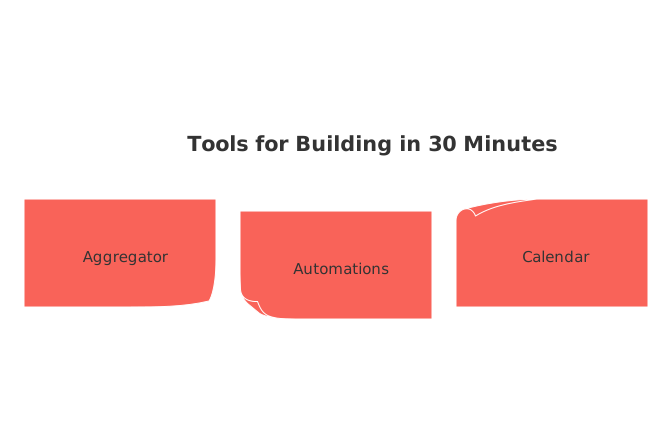
Aggregator: Routine, ClickUp, or Notion connected to automations.
Automations: Zapier, Make, or n8n for rules and routing.
Calendar: Google Calendar or Outlook for time blocks and holds.
Need ideas for consolidating channels? Check out how to merge customer conversations from Intercom, Front, and email without code to break down silos.
Step-by-step setup for a single-person workflow
Estimated time: 30 minutes
Create an “Intake” list in your aggregator. Keep this list separate from project lists.
Pipe email in: forward starred or labeled messages to the Intake list.
Pipe chat in: send pinned Slack or Teams messages to Intake via a bot.
Add a web form: set up a simple “Request work” form that sends new requests to Intake with a tag.
Normalize fields: Set up standard fields such as title, source, effort (S, M, L), due date, and owner.
Auto-tag rules: If the subject includes “invoice,” tag it as Finance; for “contract,” tag as Legal.
Auto-schedule: If effort = S and due date is within 72 hours, create a 25-minute block this week.
The result: your calendar contains only well-sized, actionable work. The Intake list captures everything else, freeing up your attention.
Team variation with shared inboxes and handoffs
Teams require additional clarity, specifically around ownership and handoffs. Add these steps:
Owner field: Default to the requester; allow reassignment during triage.
SLA tag: Map channels to response targets (e.g., Slack urgent = today).
Handoff rule: When a task moves to “Ready,” auto-create the first calendar block for the new owner.
Sales or success teams can borrow concepts from these automation suggestions for sales teams and adapt them for service or support requests.
Rules that keep events manageable and your schedule realistic
Cap blocks: Never schedule more than 60% of your workday with planned blocks.
Guard rails: Avoid time blocks shorter than 15 minutes unless it’s a call.
Clarity gate: If the task’s description lacks a defined “done” outcome, don’t schedule it.
Batch by context: Group similar tasks together to reduce context switching.
Deadlines vs. dates: Only deadlines should lead to absolutely fixed calendar events.
How to triage the universal inbox in under five minutes
Open your Intake list. Sort items first by due date, then by effort required. For each entry, ask: “What outcome will kickstart progress?” If you can act, schedule the first step. If not, request missing information and set a follow-up date. True quick wins (tasks under 10 minutes) should be batched together in a single daily block.
Calendar time-blocking that respects energy and context
Match work assignments to the flow of your daily routine. Schedule deep, focused work during your high-energy periods, and reserve lighter tasks for off-peak times. Maintain buffers around meeting times. Label blocks by their action verb: write, design, call, decide. This priming word helps you dive in with purpose when the time comes.
Common pitfalls and quick fixes
Everything lands on the calendar: Enforce stricter clarity gates and effort tags.
Blocks get ignored: Make them smaller and add a concise outcome line.
Too many sources: Pause the least valuable channels for a week and monitor the difference.
Recurring chaos: Consolidate small tasks into a single daily “Admin Hour.”
Measure success without dashboards
Monitor these three signals each week:
Block completion rate: Number of completed time blocks divided by scheduled blocks.
Rollback count: How often you need to move a calendar block forward.
Intake age: The median number of days an item waits before it’s first acted upon.
Improvement in these metrics signals less chaos and more consistent progress.
When to upgrade the pipeline or switch tools
Consider moving to an integrated workspace if you’re working across multiple teams and managing customer data in one place. Routine, ClickUp, or Notion, paired with automation, can handle more complexity. If most work comes through shared channels, read “Running Effective Meetings: Formats, Minutes, Notes, and Recaps with Ready Templates” for tips to tighten meeting agendas and outcomes, keeping your calendar focused on real priorities.
The 30-minute checklist to go from inbox to calendar
Create a dedicated Intake list with standard fields.
Connect email, chat, and a simple request form.
Tag by source and effort; set up auto-rules for frequent keywords.
Define your clarity gate. Apply it to every event.
Auto-schedule only sized tasks that are due within three days.
Batch small items into a daily block.
Review these metrics every Friday and adjust your caps or rules as needed.
Start your 30-minute timer and let your calendar surface what’s important
You don’t need more apps. You need a streamlined process that takes messages and turns them into scheduled time. Build your pipeline once, then adjust each week. Let your calendar reflect the work that matters most, not just the noise that clamors for attention.
FAQ
What is a universal inbox, and why should I use one?
A universal inbox consolidates messages from various platforms into a single location, reducing the cognitive load of switching between multiple apps. This enables you to prioritize tasks effectively, minimize overlooked messages, and ensure you’re focusing on tasks that actually require your attention.
How do I decide which tasks should be converted into calendar events?
Tasks should be converted into calendar events only if they have a clear, actionable outcome and require focused time to complete. Avoid cluttering your calendar with low-impact actions, and use a system like Routine to determine effort and priority before scheduling.
Why should I cap calendar blocking to 60% of my workday?
Blocking more than 60% of your workday overwhelms your schedule and leaves no room for unexpected tasks or adjustments. Maintaining this cap ensures flexibility, reduces stress, and allows for spontaneous innovation.
How can I handle vague requests from chat effectively?
Implement an auto-response requesting specific details, outcomes, and deadlines before adding them to your Intake list. This ensures that all tasks in your queue are actionable and prevents time from being wasted on poorly defined requests.
Is time-blocking effective for high-energy and low-energy periods?
Aligning time blocks with your energy levels maximizes productivity by scheduling complex tasks during peak energy times and simpler tasks when you’re less focused. Ignoring energy patterns can lead to burnout and diminished task performance.
What is the benefit of batching similar tasks together?
Batching reduces context-switching, which is mentally exhausting and ineffecient. Group similar tasks to maintain momentum and enhance efficiency within your workflow.
How do I prevent recurring chaos in my schedule?
Consolidate small or routine tasks into a dedicated “Admin Hour” to streamline focus and prevent constant interruptions. This disciplined approach curtails disorganization and maintains a manageable calendar.
When should I consider upgrading to an integrated workspace?
Upgrade when managing complex workflows across teams becomes unmanageable with basic tools. An integrated workspace like Routine enhances collaboration, automates routine processes, and ensures all critical workflows are interconnected efficiently.

Julien Quintard
Founder & CEO at Routine04/29/2026
