The Notification Diet: Fewer Pings, More Focus
What a notification diet solves that a mute button cannot
Silence hides noise; it does not remove it. A notification diet reshapes the flow itself. You decide what may interrupt you, when, and why. That shift returns control to your schedule and attention.
“Every ping is a micro‑meeting you didn’t plan.”
Many apps are designed to capture your attention through frequent notifications. Instead of just temporarily silencing them, design a system to effectively manage these interruptions. This article gives you one you can start today.
How to audit your current notifications across work and personal apps
Start with a quick inventory. You need facts before you make cuts.
List your top five sources: email, chat, project tools, CRM, and social.
Estimate daily pings from each source for the last seven days.
Tag each source: action required, FYI, or promotional.
Mark duplicates across apps. Duplicates are the first to cut.
Note the worst time of day for interruptions. Protect that hour first.
Keep this list visible while you tune settings later. It will guide every change.
Rules that separate action‑required alerts from background noise
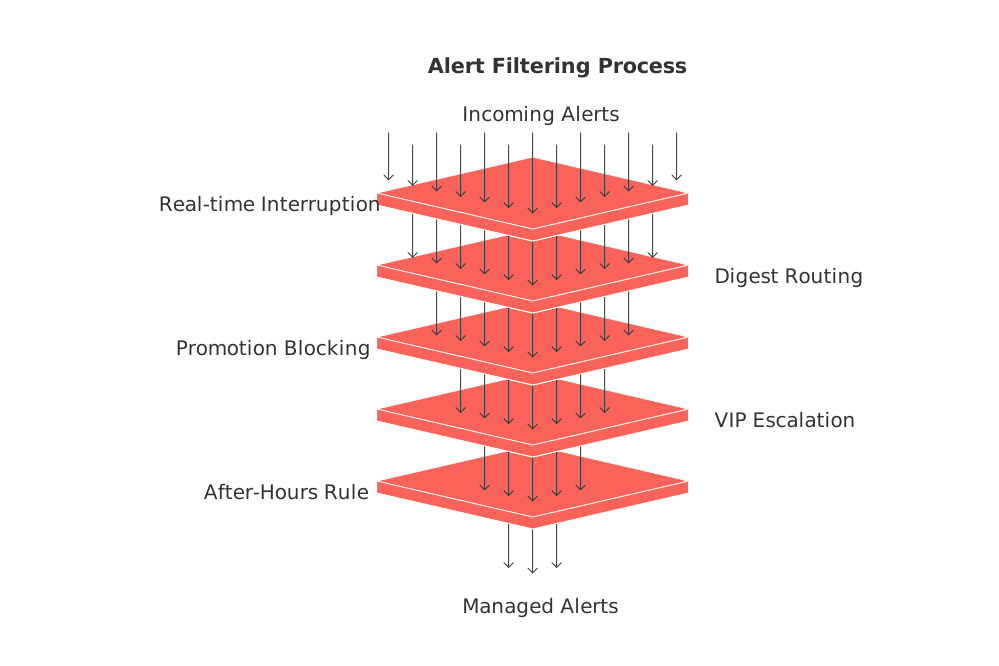
Write rules you can follow under pressure. Decisions made now prevent panic later.
Only allow “action required within 24 hours” to interrupt in real time.
Route pure FYIs to a daily or hourly digest.
Block promotions and social likes completely.
Escalate only for VIPs: clients, manager, or family caregivers.
Set an after‑hours rule. Emergencies call or SMS only.
Practical notification settings for email, chat, project tools, and CRM
Email: make the inbox pull, not push
Turn off desktop pop‑ups and unread badges.
Filter newsletters and promos to a Read Later label.
Create a VIP list for priority clients. Restrict real‑time alerts to this list, while routing notifications from other clients to a digest or designated check window.
Bundle receipts, shipping, and updates into a 6 p.m. digest.
Chat: keep DMs open, channels quiet
Allow DMs and@mentions. Mute all other channel traffic.
Star key teammates. Let starred users bypass channel mutes.
Use keywords for true alerts: blocked, urgent, production.
Set quiet hours to protect deep work blocks.
Project tools: alert only on ownership
Notify only on tasks assigned to you or due today.
Mute status flips and generic activity feeds.
Switch comments to a single daily digest.
Use watchers sparingly. Auto‑remove yourself after handoff.
CRM: focus on pipeline movement, not chatter
Allow alerts for new assigned leads and stage changes only.
Send web form fills to a queue plus an hourly digest.
Convert missed calls to tasks, not notifications.
Suppress duplicate alerts from integrations.
Batching windows and digest summaries that protect deep work
Create two or three check windows throughout your day, for example, 10:30 a.m., 2:30 p.m., and 5:30 p.m. Limit each checking period to 20 minutes, helping to contain potential distractions and minimize context switching within these allocated time blocks.
Deliver email and app digests at the start of each window.
Disable sound and vibration outside those times.
Use device summaries to bundle low‑priority alerts.
Place a final five‑minute triage before you stop for the day.
Frequent reviews help habits stick. Consider reassessing your notification settings and adjusting your goals every 12 weeks.
Reduce app sprawl with a single source of truth to cut notifications
Many alerts exist only because work is scattered. Centralize projects, knowledge, and CRM in one place. You will remove entire classes of pings.
Compare models before you switch. This guide comparing all‑in‑one workspaces and dedicated project tools shows the trade‑offs clearly.
Using multiple tools, an all‑in‑one workspace such as Routine or Notion, a project management suite like Asana or ClickUp, and a CRM like Pipedrive or HubSpot, can create overlapping alerts and unnecessary handoffs. Aim to consolidate your tools where practical and streamline notification paths to reduce interruptions.
Automations that replace interruptive notifications with predictable updates
Let systems move data while you stay focused. Replace live pings with tasks and digests.
When a support ticket closes, auto‑create a follow‑up task for the owner.
Collect channel mentions into an hourly Slack or email digest.
On deal moved to Contract, assign legal and notify only the assignee.
Send daily pipeline snapshots to executives at 4 p.m., no live alerts.
For step‑by‑step recipes, see these automations every B2B sales team should set up. Adapt the patterns for support, finance, or ops.
Personal notification diet templates for freelancers, students, and parents
Freelancers
VIP: active clients, accountant, and one collaborator.
Chat: DMs allowed; channels muted unless on deadline.
Email: clients in priority inbox; everything else to a 6 p.m. bundle.
Social: comments off; messages checked at lunch only.
Students
Allow messages from classmates and tutors during set hours.
Silence all app badges. Keep study blocks interruption‑free.
Route course updates to a noon digest.
Parents and caregivers
VIP: family, caregivers, and health providers with call bypass.
School and activity apps deliver one 6 p.m. digest.
Shopping and deliveries grouped to a single daily summary.
Phone hygiene that still lets people reach you in emergencies
Turn off badges and lock‑screen previews for non‑VIP apps.
Use Focus modes tied to work and personal hours.
Allow calls from Favorites; silence unknown callers.
Group notifications by app to reduce screen clutter.
Disable vibration except for VIP calls.
Metrics to measure your notification diet every week
Pings per day, by source.
Time to first meaningful task after starting work.
Deep‑work hours protected this week.
Average response time to clients during business hours.
Number of apps still allowed to interrupt you.
Duplicate alerts eliminated since last review.
Track these in a simple spreadsheet. Review trends every Friday.
Edge cases and how to handle notification exceptions without breaking your diet
Executives: Create a single escalation channel with clear SLAs.
Regulated teams: Log everything, but restrict real‑time alerts to required events.
Sales or support on duty: Allow live leads during shift hours; digest outside them.
Distributed teams: Keep one on‑call rota and silence everyone else.
Personal emergencies: Share your VIP policy with family. Set expectations upfront.
Your diet will evolve. Revisit rules each quarter, remove one app, and reclaim more calm each cycle.
FAQ
How does a notification diet differ from just muting notifications?
A notification diet restructures how notifications impact your attention by allowing only specific, essential alerts to reach you, unlike mute buttons that merely pause all noise. This approach puts you back in control, preventing random interruptions and fostering deeper focus.
What initial steps should I take to audit my current notifications?
Begin with an inventory of your main notification sources, such as email and chat, and determine their daily frequency. Categorize these pings based on necessity and identify any redundant alerts to eliminate excess noise.
Can automations really replace interruptive notifications?
Yes, automations can transform live disruptions into predictable tasks and digests, freeing up mental bandwidth for more meaningful work. However, without strategic setup, they risk becoming automated noise masking as a solution.
What practical strategies can help manage email notifications?
Turn off pop-ups and badges, and filter non-urgent emails into digests to review during scheduled times. Prioritize essential communications by creating VIP lists and bundling less critical updates into digest formats.
Why is centralizing tools important for reducing notifications?
When your work tools are fragmented, notifications proliferate unnecessarily, causing distraction overload. Centralization with services like Routine consolidates alerts and simplifies management, slashing redundant noise.
What common pitfalls can arise with notification settings?
Neglecting to update rules regularly or failing to differentiate alert priorities undermines the effectiveness of your notification strategy. It's essential to refine these settings periodically to maintain control over digital interruptions.
How can freelancers maintain a healthy notification diet?
Freelancers should prioritize active client communications and mute irrelevant channels until necessary. By setting clear boundaries, like limiting email checks to specific times, they can ensure that only vital alerts break through.
How often should notification settings be reviewed?
Regular reviews, ideally each quarter, are crucial to adapt to changes in workflow or priorities. Vigilantly modifying settings prevents outdated rules from sabotaging productivity and helps reclaim focus continuously.
Can a single source of truth really mitigate notification overload?
Absolutely, consolidating your resources reduces duplicative notifications and unnecessary cross-tool chatter. This strategy, often involving platforms like Routine, streamlines alert pathways and enhances your control over digital distractions.
What measures ensure emergency notifications come through?
Implementing bypass settings for VIPs ensures critical alerts, like family emergencies, come through. Balancing these with focus modes during work hours maintains clarity in what demands immediate attention.

Julien Quintard
Founder & CEO at Routine07/02/2026
