How To Build a Universal Inbox With iOS Shortcuts and Email Rules
Why a universal inbox on iPhone prevents constant context switching
Your attention splinters across email, DMs, and alerts. A universal inbox pulls every input into one steady queue. You scan once, decide once, and move on. That single stream reduces missed replies and mental load.
“One place for input means one place to decide.”
This playbook shows how to build that stream with iOS Shortcuts and email rules. No extra subscriptions. No new habits beyond opening Mail.
Choose the single place where everything lands for your universal inbox
Decide on a destination before automating anything. The simplest option is a folder or label inside your existing email account named Universal Inbox. Keep it visible on iPhone and desktop.
Gmail: Create a label named Universal-Inbox. Show it in IMAP and in the label list.
iCloud Mail: Create a folder named Universal Inbox on iCloud.com. It syncs to Mail on iPhone.
Outlook: Create a folder with the same name. Pin it to Favorites.
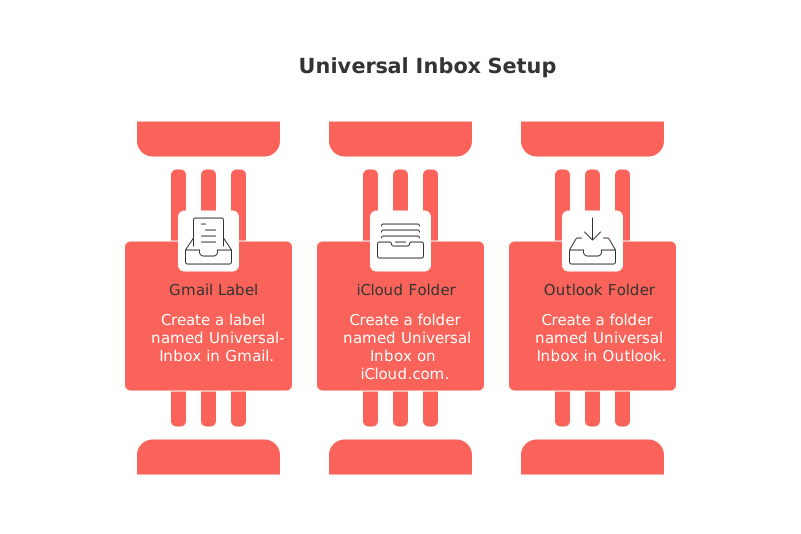
This one folder becomes the catch‑all for emails you must review, links you send yourself, and items forwarded by your iOS Shortcuts.
Build practical email rules that capture items into the universal inbox automatically
Email rules do the heavy lifting. They move or label messages the second they arrive. Start with broad rules, then refine weekly.
Core filters to set first
Receipts and invoices: Subject contains “invoice”, “receipt”, or “statement” → send to Universal Inbox and mark as unread.
Action words: Subject or body contains “approve”, “review”, “sign”, or “urgent” → route to Universal Inbox and star/flag.
Known senders you always read: From matches clients or family → copy to Universal Inbox, keep original in Inbox.
Newsletters you actually process: From contains trusted digests → move to Universal Inbox; auto-archive the rest.
Test each rule with sample messages to maintain a manageable, focused queue and avoid creating a second chaotic inbox.
You can create iOS Shortcuts that send any content to your universal inbox from the iPhone’s Share Sheet
Set up Shortcuts yourself so you can forward links, files, photos, and text to your Universal Inbox in two taps from almost any app.
Shortcut: Share to Universal Inbox
Open Shortcuts. Create a new Shortcut. Enable it for the Share Sheet.
Add actions: Get Provided Input → If input has a URL or text → Continue.
Add Send Email. Set To to your own address. Set Subject to “New item from iOS”.
Insert the input into the message body. Turn off Show Compose Sheet for speed.
Save as “Share to Universal Inbox”.
From Safari, Photos, or Files, tap Share → Share to Universal Inbox. The item arrives in seconds, already labeled by your rule.
Capture from Safari, Photos, and Files without breaking flow
Streamline the processes for your most frequently used capture paths. Ensure that each configured Shortcut serves one primary purpose and is quick to execute.
Safari: Share the page. Your Shortcut emails the title and URL.
Photos: Share the image. The Shortcut embeds the photo with a short caption.
Files: Share the document. The Shortcut emails the file with the current filename.
Clipboard: A tap‑only Shortcut that emails whatever you copied.
Dictation: Use Dictate Text → Send Email to capture thoughts hands‑free.
Keep names clear: “Share to Inbox (Link)”, “Share to Inbox (Photo)”, and so on. You will move faster by muscle memory.
Pull signals from other apps into email using built‑in notifications
Many services offer options to email notifications of key events directly to your universal inbox. Choose to enable only those you intend to review regularly.
Messaging platforms: Turn on email notifications for new DMs or mentions. Funnel them to Universal Inbox with rules.
Social platforms: Email only for direct messages or saved posts.
E‑commerce and finance: Send orders, payouts, and alerts to Universal Inbox. Flag anything requiring action.
Form tools: Route new submissions to Universal Inbox with a subject prefix like “[Form]”.
For efficiency, prune your notifications aggressively. If you find a notification that never results in action, it’s best to disable its email feed.
Triage your universal inbox with a fast, repeatable routine
Triage in short bursts. Treat the Universal Inbox like a queue, not storage.
Delete or archive items you do not need. No second guessing.
Do anything under two minutes, then archive the thread.
Delegate by forwarding with a crisp subject and deadline.
Defer with email snooze or a star/flag for today’s review.
Keep the queue short by defaulting to archive after each decision. Search will find anything later.
Prevent overload with iOS Focus and notification settings tuned for your inbox
Protect your attention while you process. Silence non‑critical alerts during triage windows.
Allow Mail and one or two priority apps during Focus.
Mute badges for every folder except Universal Inbox.
Group notifications by app. Deliver summaries outside deep‑work blocks.
Small switches like these keep the queue calm and workable.
Troubleshooting common issues with iOS Shortcuts and email filters for a universal inbox
Emails skip your folder: Check rule order. Place Universal Inbox rules above bulk filters.
Duplicate messages: Use “Move” instead of “Copy” unless you truly need both.
Share Sheet not showing: Edit the Shortcut. Enable “Show in Share Sheet” and limit to accepted content types.
Attachments fail: Large files may exceed size limits. Share a cloud link instead.
Overcrowded queue: Add one new rule each Friday that removes noise.
Review your rules monthly. Keep what saves time. Remove what adds friction.
When an all‑in‑one workspace outperforms email for a universal inbox strategy
Email works well as a universal inbox for most individuals. Some teams and freelancers prefer a single workspace that also holds projects, a knowledge base, and lightweight CRM. Tools like Routine or Notion can serve as that hub, especially when collaboration is central.
If you are unsure which model fits, compare trade‑offs in this guide on all‑in‑one workspaces versus dedicated project tools. Handling messages from multiple support and sales tools? This walkthrough on merging customer data from Intercom, Front, and email without code shows practical consolidation paths you can adapt.
Pick the destination that reduces clicks for you and your clients. Then keep refining the capture and triage until it feels effortless.
FAQ
What is the primary benefit of a universal inbox?
A universal inbox consolidates inputs from various channels, minimizing missed communications and mental strain. It streamlines processing, enabling decision-making efficiency without diversifying workflows.
Why should I integrate iOS Shortcuts into my universal inbox strategy?
Leveraging iOS Shortcuts automates the capture process from apps, enhancing consistency and speed. However, it's critical to avoid over-automation, which can lead to clutter instead of clarity.
How can email rules prevent inbox chaos?
Email rules act as a filter gate, categorizing and sorting messages upon arrival. Yet, be cautious: poorly crafted rules risk creating a secondary inbox mess, requiring ongoing refinement.
Is a universal inbox always the best solution for managing digital inputs?
While beneficial for many, some teams might find more value in all-in-one workspaces like Routine or Notion. These tools can better accommodate collaborative needs and intertwined project management.
How do I prevent my universal inbox from becoming overwhelming?
Regular triage and disciplined workflow application are key. Archive swiftly, and adjust rules weekly to filter out unnecessary noise before it compounds.
What should I do if my Shortcuts are not functioning correctly?
Ensure each Shortcut is adequately set up for the Share Sheet and properly linked to supported content types. Routine checks and timely troubleshooting are essential to prevent processing bottlenecks.

Julien Quintard
Founder & CEO at Routine06/23/2026
