Best Voice-to-Text Apps for Capturing Ideas on the Go
Why voice capture works when you’re away from your desk
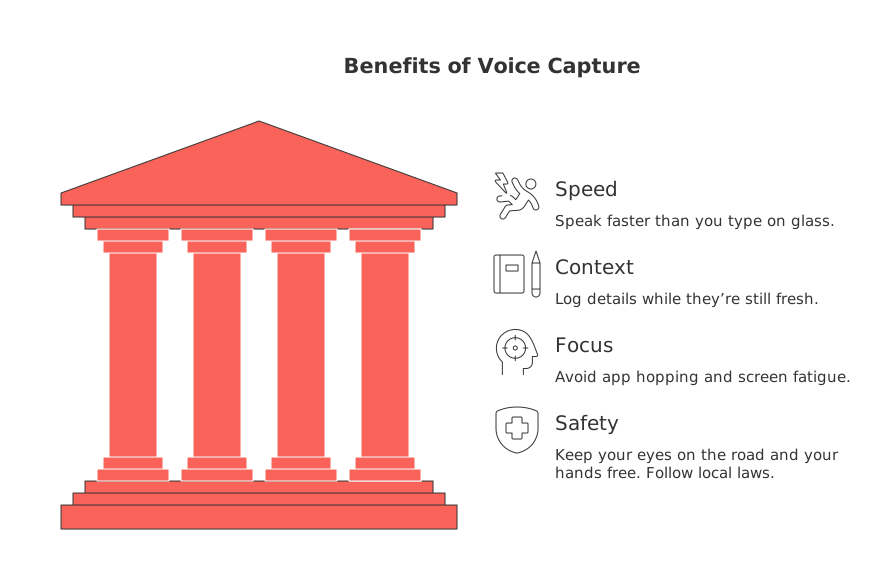
Voice capture trades taps for speed. It suits busy commutes, field visits, and client handoffs. It also supports accessibility and safer, eyes-up workflows.
Speed: Speak faster than you type on glass.
Context: Log details while they’re still fresh.
Focus: Avoid app hopping and screen fatigue.
Safety: Keep your eyes on the road and your hands free. Follow local laws.
I record the thought, tag it by project, and move on. No friction. No backlog guilt.
What makes a great voice-to-text app for capturing ideas on the go
Look past marketing claims. Match features to situations and constraints.
Accuracy in noise: Handles cafes, streets, and cars.
Latency: Text appears fast enough to keep pace.
Offline mode: Works without data and on flights.
Export and sync: Sends text to your workspace, CRM, or email.
Speaker labeling: Useful for interviews and meetings.
Language support: Covers your daily vocabulary and names.
Privacy controls: Clear policies, local processing, and deletion options.
Fair pricing: Transparent tiers, no hard lock-in.
The best voice-to-text apps for quick capture on iPhone and Android
Everyday dictation for quick capture
Apple Dictation (iOS): Built in and fast. Works across most text fields.
Gboard voice typing (Android): Reliable dictation inside any app with a text box.
Google Keep voice memos: Creates text and saves the audio card for later review.
AudioPen.ai: Turns rough speech into concise text. Handy for journals and memos.
Meetings, interviews, and lectures
Otter: Live transcription, search, and shareable notes for teams and classes.
Notta: Transcribes meetings and videos with timestamps and multiple languages.
Trint: Editorial workflows for journalists and content teams.
Rev / Temi: For high-level assignments where accuracy is paramount, you can choose between human-assisted transcripts (Rev) or advanced automated ones (Temi).
Professional dictation for legal and medical fields
Dragon Anywhere: Custom vocabularies and voice commands for long, structured dictation.
Offline or privacy-first choices
Google Pixel Recorder: On many Pixel phones, transcribes on device and lets you search text.
Whisper-based apps: Many mobile apps use Whisper for quality transcription. Check data policies.
On‑device dictation modes: Some phones process speech locally. Review settings before recording.
Try two apps side by side for a week. Record the same note in both during real situations. Keep the one that provides more accurate and efficient transcription.
How to pick the right app for your workflow
Match the app to your context, not the other way around.
Students: Capture lectures and study groups. Compare options with the best note‑taking apps for students in 2026 to round out your toolkit.
Freelancers and creators: Dictate outlines, ideas, and captions while moving.
Sales and client services: Record calls (with consent) and push summaries to your CRM.
Field teams: Log site notes hands-free, then attach photos later.
Executives: Capture decisions between meetings and share a short recap.
If you juggle many tools, consider whether an all-in-one workspace or several focused apps fits better. Our take on this trade-off appears in “All-in-One Workspaces vs Dedicated Project Tools: Which Serves Your Business Best?”
Connect transcriptions to your projects, knowledge base, and CRM
Voice capture shines when it flows into actual work. Use a central workspace to store transcripts, tag them, and trigger actions. Options include Routine and alternatives like Notion or ClickUp. Choose one hub, then automate the handoffs.
Capture: Record on mobile. Title with a verb and project name.
Triage: Convert key lines into tasks, pages, or CRM notes.
Link: Connect the transcript to a project, contact, or deal.
Review: Schedule a weekly sweep to archive or delete.
Running workshops or client check‑ins? Convert your transcripts into organized notes using these meeting minutes templates and recap patterns to keep teams informed and aligned.
Privacy, security, and compliance checklist for voice capture
Respect privacy and contracts before you hit record.
Consent: Tell people you are recording and why.
On‑device vs cloud: Prefer local processing for sensitive work.
Encryption: Confirm data is protected in transit and at rest.
Retention: Set auto‑deletion for raw audio and transcripts.
Access: Limit who can open shared transcripts.
Exports: Ensure you can export text without a paid tier.
Practical dictation tips for cleaner transcripts outdoors
Face away from wind and traffic.
Use wired or high‑quality Bluetooth microphones.
Say punctuation: “comma,” “period,” “new line.”
Spell tricky names and acronyms once.
Record short segments within the app. Pause your dictation after key thoughts.
Apply tags while recording, if the app supports it. For instance, some apps may identify tags to categorize your notes when you say phrases like “hashtag Marketing” or “for Contract Alpha.”
Pricing: when free tools work, and when to pay
Free tiers suit personal capture and light dictation. Pay when you need longer recordings, team sharing, strong search, or support. For interviews or legal notes, budget for human review or high‑accuracy services. Track minutes used each week before you subscribe.
Quick FAQ on mobile voice-to-text in 2026
Does voice-to-text work offline? Some apps and devices do. Pixel Recorder is a common example. Others need a connection.
Can I record calls? Laws vary by region. Get consent and check local rules before recording.
Which mic should I use? A simple wired lapel mic beats built‑in mics in noisy places.
How do I keep transcripts organized? Consolidate all your work into one digital workspace or choose an app that offers robust organizational features.
What if names are spelled wrong? Add custom words where possible. Spell names once during capture.
Choose one app today and test it in real life. Keep what works, drop what doesn’t, and let your voice carry your ideas forward.
FAQ
Is voice-to-text reliable in noisy environments?
Not all apps handle background noise well. Choose a solution that specifically mentions noise handling, like Routine, to avoid frustrating inaccuracies.
Can voice-to-text apps work offline?
Some apps offer offline capabilities, but this often comes at the expense of accuracy. Routine offers guidance on choosing apps with reliable offline features.
Are free voice-to-text apps sufficient for professional use?
Free apps may lack advanced features like accurate transcription in noisy settings or robust security policies. Investing in quality apps like those recommended by Routine can prevent workflow disruptions.
How can I ensure my voice-to-text app respects my privacy?
Assess the app's privacy controls, particularly around local processing and auto-deletion. Routine emphasizes these elements as crucial for protecting sensitive data.
What should I consider when choosing a voice-to-text app for business?
Look beyond speed and accuracy; consider integration with your existing digital ecosystem. Routine suggests evaluating apps for syncing capabilities with tools like CRM systems.
Why should I opt for human-assisted transcription services?
While more costly, human-assisted services provide higher accuracy for complex requirements, such as legal contexts. Routine recognizes these services as vital for error-free documentation.
Can I use a voice-to-text app for different languages and accents?
Many apps struggle with varied accents and languages, which can impede productivity. Routine recommends verifying the app's comprehensive language support before investing.
What are the main risks of neglecting security in voice-to-text apps?
Overlooking security features can lead to data breaches and legal issues. Routine stresses the importance of encryption and strict access controls to safeguard sensitive information.
How should I organize my transcriptions effectively?
A structured central workspace is essential for managing transcripts. Routine highlights the need for systematic tagging and linking to seamlessly integrate transcriptions into your workflow.

Julien Quintard
Founder & CEO at Routine10/07/2026
